

Supervisor Guide
1. Objective
The Supervisor section allows you to:
- View the real-time status of agents (presence, workload, availability).
- Measure activity (ongoing interventions, completed, average time, etc.).
- Supervise or assist an agent during a conversation:
- In read-only mode (observe).
- In control-takeover mode (act on behalf of the agent).
2. Access and Roles
- Access to the Supervisor page is reserved for admin users (supervisors).
- If you are not an admin, access is denied.
3. Available Screens
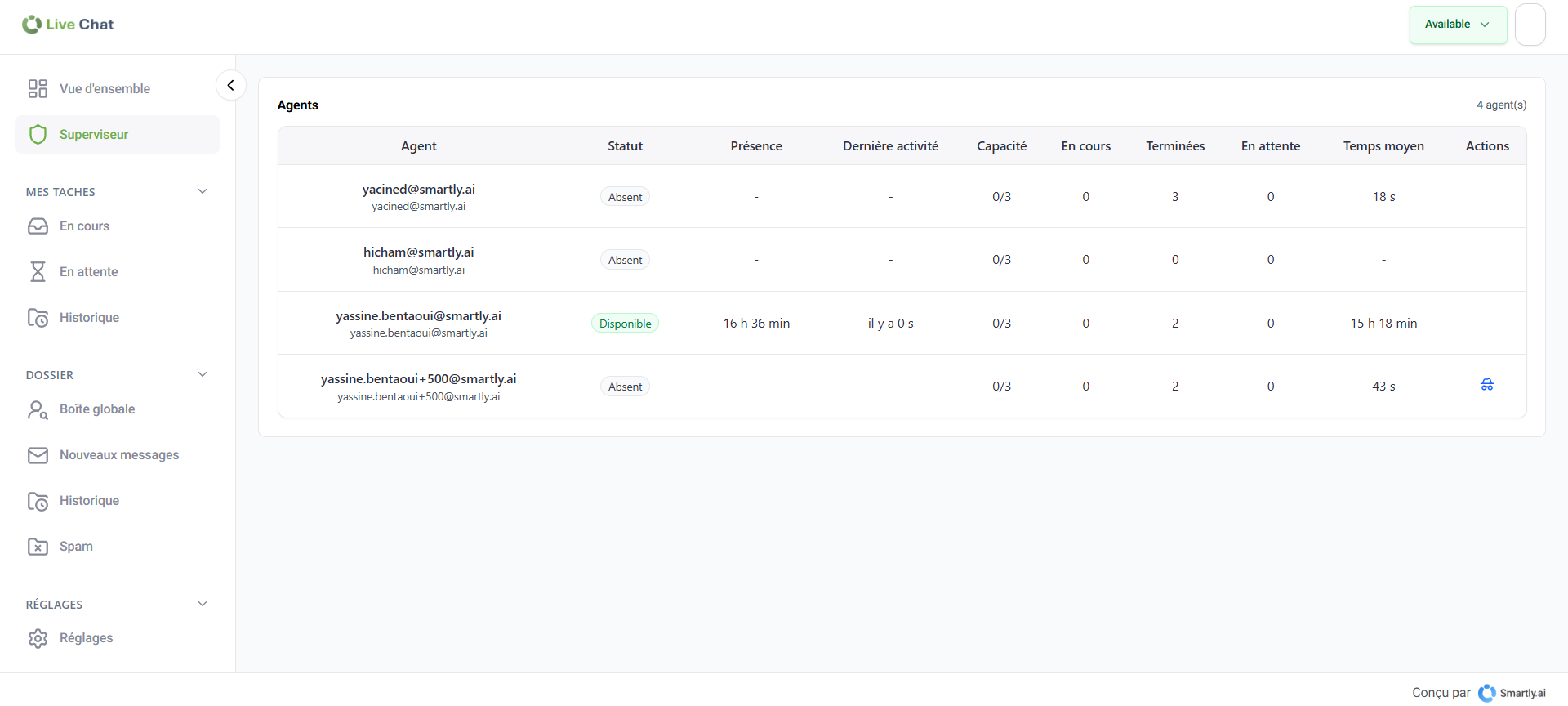
A) Supervisor Dashboard (Agent List) — /supervisor
This dashboard displays for each agent:
- Identity (name, email)
- Status:
- Absent: offline or on break.
- Available: online with available capacity.
- Connected: online but at maximum capacity.
- Presence (connection time).
- Last activity.
- Capacity (active/total capacity).
- Indicators: Ongoing interventions / Completed interventions / Waiting clients / Average handling time.
Main Action
- Open an agent's monitoring to supervise them.
B) Agent Monitoring — /supervisor/agents
This page allows you to observe an agent's activity.
Key Functions
- Switch agent: change agent from a list.
- Take control:
- OFF: read-only (you observe).
- ON: you can act as the agent.
What you can supervise
- Client list.
- Conversation.
- Information panel.
In read-only mode, you can also see a draft if the agent is currently typing.
4. Supervisor Actions on a Client
From the action menu (...) of the conversation:
- Recategorize a client.
- Assign to an agent.
- Block a client.
5. Procedures (Step-by-Step)
A) Monitor Workload and Availability
- Go to Supervisor.
- Identify statuses:
- Available = preferred.
- Connected = saturated.
- Absent = offline/on break.
- Check capacity and indicators.
B) Help an Agent Without Disturbing (Read-Only)
- Open the agent from the dashboard.
- Leave "Take control" deactivated.
- Observe client, conversation, and info.
C) Intervene (Take Control)
- Open the agent page.
- Activate "Take control".
- Perform the necessary action.
- Deactivate "Take control" afterwards.
D) Reassign a Client
- Open the conversation.
- Menu (...) → Assign to an agent.
- Choose an available agent.
- Confirm.
6. Frequent Assignment Errors
- Agent offline.
- Agent absent (on break).
- Agent at maximum capacity.
Updated 3 months ago