

Integrating Webchat with Livechat in Smartly Agent
This guide will walk you through the steps to connect your Webchat channel to the Smartly Live Chat platform. This integration allows your human agents to take over conversations when the AI assistant cannot resolve a user's request.
The integration process is divided into three main parts:
-
Creating a channel in Live Chat.
-
Generating an API Token.
-
Linking the Live Chat to your Bot.
Step 1: Create a Channel in Smartly Live Chat
First, you need to define where the messages will be coming from within the Live Chat interface.
-
Log in to your Smartly Live Chat dashboard.
-
Click on Settings (Réglages) in the bottom left menu.
-
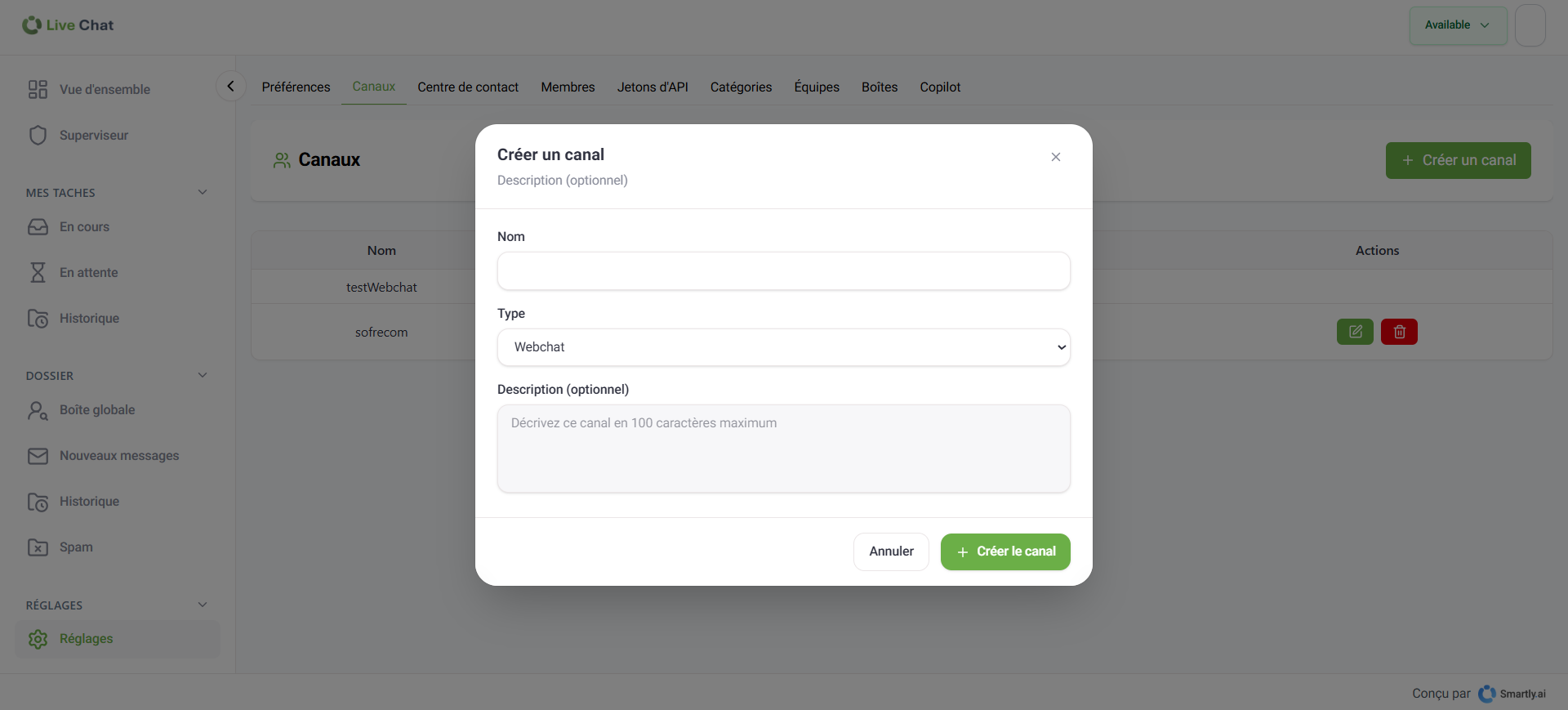
Select the Channels (Canaux) tab.
-
Click on the + Create a channel button.
-
In the configuration modal:
- Name: Enter a recognizable name (e.g., Webchat_Support).
- Type: Select Webchat from the dropdown menu (Note: WhatsApp and Messenger are also supported).
- Description: Add a brief description for your internal team.
-
Click Create.
Step 2: Generate an API Token
To securely connect your bot to the Live Chat platform, you must generate a unique access token.
-
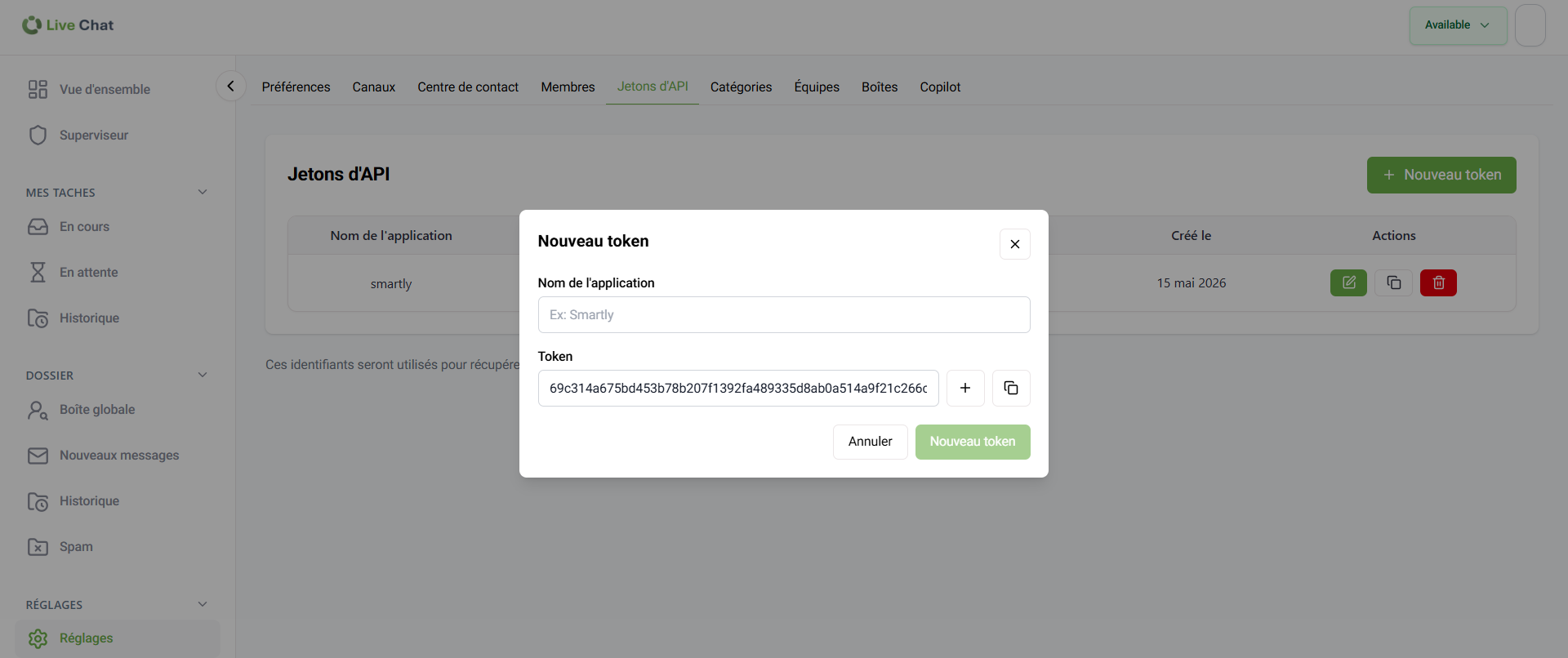
While still in the Settings menu of Live Chat, go to the API Tokens (Jetons d'API) tab.
-
Click on + New Token.
-
Fill in the details:
- App Name: Use the same name as your channel for consistency (e.g., Webchat_Support).
-
Click Generate Token.
-
Important: Copy the generated token immediately. You will need it for the next step.
Step 3: Configure the Integration in Smartly Agent
Now, you need to tell your AI Bot to send "Handover" requests to the Live Chat channel you just created.
-
Go to the Smartly Agent platform and select your Bot.
-
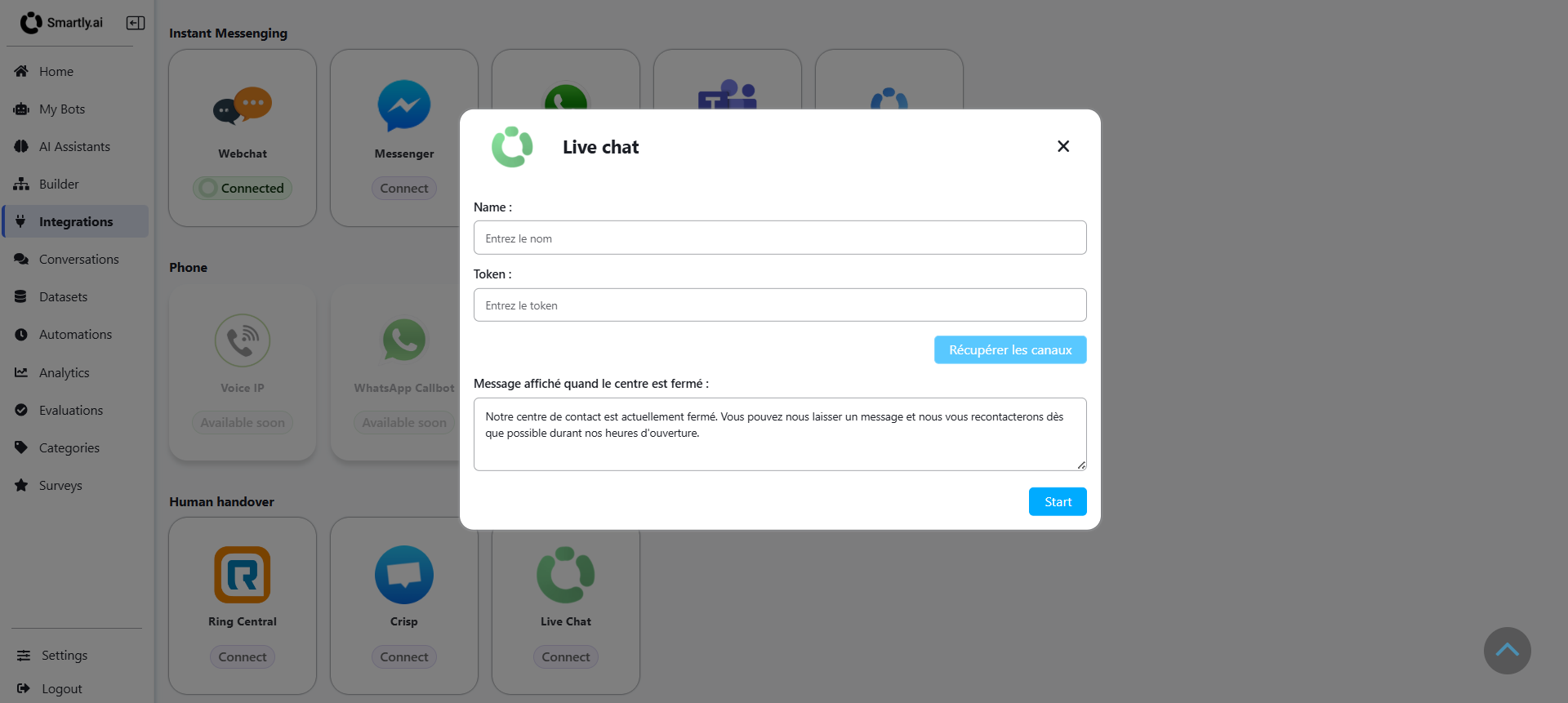
Navigate to the Integrations section in the left sidebar.
-
Scroll down to the Human Handover category and click on the Live Chat tile.
-
In the configuration window:
-
API Token: Paste the token you generated in Step 2.
-
Fetch Channels: Click the "Fetch Channels" (or Récupérer les canaux) button. This will use your token to securely retrieve the list of all available channels from your Live Chat account.
-
Select Channel: Once the list appears, select the specific channel you created in Step 1 (e.g., Webchat_Support) from the dropdown menu.
-
-
Click Connect or Save.
Key Takeaways
-
Ensure the Channel Type in Livechat is specifically set to Webchat for this integration.
-
The Name field in the Smartly.AI integration step must precisely match the API Token name from Livechat, not necessarily the Channel name.
Updated 3 months ago