
Advanced Translation Settings
To make your bot multilingual and optimize its performance, you need to access the advanced settings of your specific bot. Follow these steps:
1. How to access the settings
Navigate to "Bots": In the left-hand sidebar menu, click on the "Bots" module under the "Modules" section.
Select your Bot: In the list of your bots, locate the bot you want to configure.
Click Edit
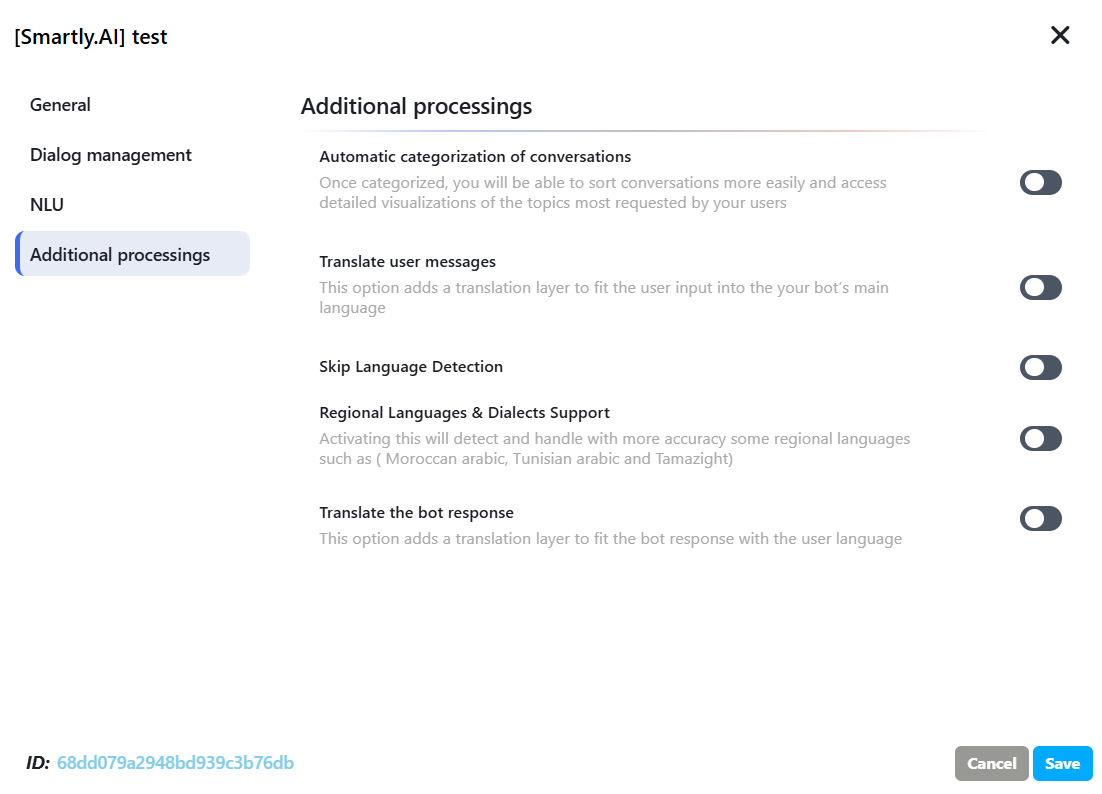
Open the advanced tab: A configuration window will appear. In the left-hand menu of this window, you will find the following tab Additional Treatments
2. Translation Options & Best Practices
A. Translate User Messages
- How it works: Translates the user's input into the bot's main language before NLU analysis.
- Best for: Allowing your bot to understand any language while you only manage one knowledge base or set of intents.
- Performance: It optimizes intent detection because the AI works in the language it was originally designed for.
B. Translate Bot Answers
- How it works: Translates the response generated by the bot into the language detected from the user.
- Result: The user receives a fluid response in their own language.
C. Support for Regional Languages & Dialects (Smartly LLM)
- The Difference: Unlike standard translators, this option uses Smartly.ai's custom LLMs optimized for dialects.
- Specifics: It accurately detects and processes: Moroccan Arabic (Darija), Tunisian Arabic, Tamazight ...
⚠️ Urgency Note: this is the most critical setting to ensure users feel understood when using local dialect instead of Modern Standard Arabic.
3. Mandatory AI Configuration
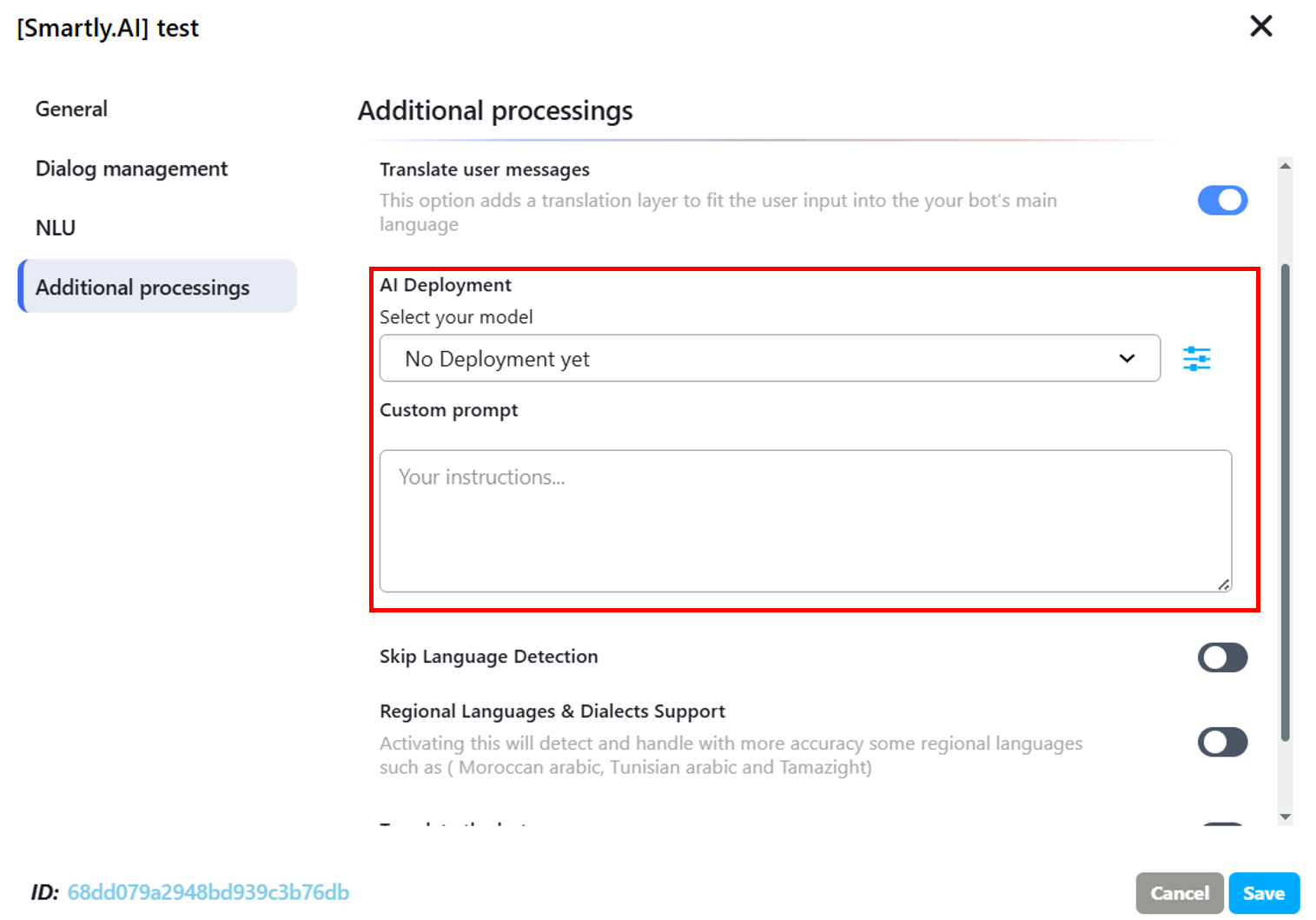
When you enable translation (User or Bot side), you must configure the following two elements to ensure the system functions correctly:
- AI Deployment Model: Select the specific engine that will handle the translation (e.g., Azure OpenAI GPT-4 or Smartly.ai LLM). Note: The choice of model impacts both the speed and the nuance of the translation.
- Personalized Instructions (System Prompt): You can give specific directives to the translation agent. Example: "Translate in a formal and polite tone," or "Do not translate brand-specific product names."
4. Expert Mode: Skip Language Detection & Forcing
The "Skip Language Detection" option is used when you want to bypass the automatic detection (for example, if you already know the user's preference through your web interface).
How to Force a Specific Translation Language
- Variable to use: user_data.preferred_translation_language
- Best Practice for Language Codes: Always use the full ISO language format (e.g., fr-fr, en-us) instead of generic codes like fr or ar.
- 💡 Performance Optimization: Using the full ISO code (such as fr-fr instead of fr) allows the system to behave more intelligently:
- If the forced language matches the bot’s native graph language (e.g., the user selects French while the bot is running on a fr-fr graph), the system automatically bypasses the translation process.
- Translation is triggered only when the user’s language differs from the graph language.
- This approach avoids unnecessary translation calls and ensures faster response times and better performance.
- Setup in the Builder (Graph):
- Add a NodeJS or Code node at the very beginning of your conversation path.
- Set the full ISO language code for the desired language.
Code Example : user_data.preferred_translation_language = "fr-fr";
Updated 4 months ago